
I also built a working prototype in Python to demonstrate this architecture. You can find the link to the prototype here.
In the previous post, we looked at the full agentic KYC workflow for high-net-worth onboarding.
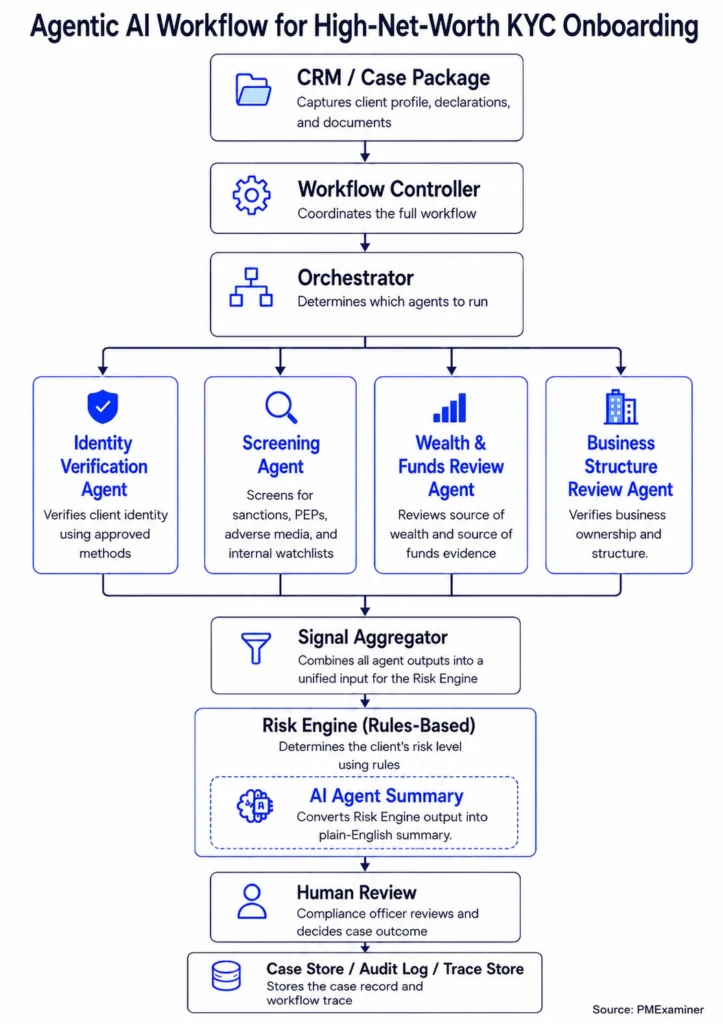
In this post, we are zooming into the first piece of the workflow: CRM / Case Package.
This is where the workflow begins. And it matters more than it looks.
If the case package is messy, everything downstream breaks down. The Orchestrator gets poor inputs. The specialist agents receive incomplete information. The Signal Aggregator has less to work with. The Risk Engine may make a decision based on an incomplete picture.
So before we talk about agents, orchestration, or AI summaries, we need to answer a simple question:
How does a high-net-worth client’s information get into the workflow in a clean format?
To answer that, we start with the relationship manager.
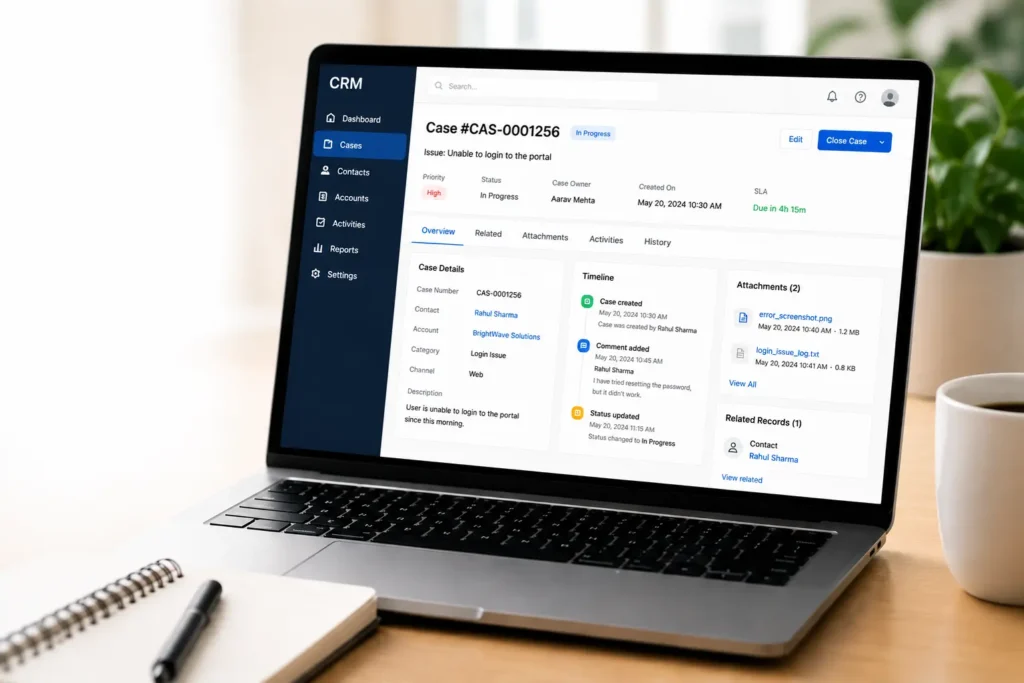
The relationship manager captures three types of client information from James in a CRM.
First, declared information. This is what the client tells the bank: their name, address, occupation, source of wealth, source of funds, and more.
Second, documentary evidence. These are documents that support the declared information: government ID, bank statements, business sale agreement, and more.
Third, consent records. This allows the bank to run third-party checks. For example, credit bureau consent allows the bank to verify the client’s credit history.
The bank collects all this information because regulations demand it.
In Canada, the Proceeds of Crime (Money Laundering) and Terrorist Financing Act (PCMLTFA) and FINTRAC guidance set the rules. Banks must verify client identity, understand the purpose of the relationship, and determine the source of funds.
How the client information gets to the Workflow Controller
The CRM does not send raw notes and uploaded files directly to the Workflow Controller.
First, the information has to be captured, stored, classified, extracted, and packaged.
Let’s use Google Cloud as an example:
The relationship manager captures client information in the CRM
↓
Uploaded documents and client information are sent to Google Cloud Storage
↓
Google Document AI classifies each document
↓
Google Document AI extracts useful facts from each document
↓
Extracted facts are saved as JSON files in Google Cloud Storage
↓
Google Cloud Workflows packages the CRM data, document links, extracted facts, and consent records
↓
The Workflow Controller receives the structured case package
Let’s walk through each step.
First, the relationship manager captures the client information in the CRM.
Second, the uploaded documents are sent to Google Cloud Storage.
Third, Google Document AI classifies each document.
This means it identifies what type of file was uploaded.
For example:
- This document is a government ID.
- This document is a bank statement.
- This document is a business sale agreement.
Fourth, Google Document AI extracts key information from each document.
For example, from a government ID, it may extract: name, date of birth, issuing country, and expiry date.
Fifth, the extracted facts are saved as JSON files in Google Cloud Storage.
For example, the original bank statement may be stored here: cloud://kyc-documents/KYC-123/doc_003.pdf
And the extracted facts may be stored here: cloud://kyc-extracted-facts/KYC-123/doc_003_facts.json
So the raw document and the extracted facts are both stored in the cloud, but as separate files.
Sixth, Google Cloud Workflows packages the information.
This is the step that brings everything together: client information from the CRM, document links from Google Cloud Storage, extracted facts from the JSON files, consent records, and case information.
Google Cloud Workflows acts as the coordinator in this example. It pulls the pieces together and prepares the structured case package.
Finally, the Workflow Controller receives the structured case package.
For example:
{
  "case_id": "KYC-123",
  "declared_profile": {
    "full_name": "James Whitmore",
    "source_of_wealth": "Sale of private business",
    "source_of_funds": "Crypto exchange transfer",
    "pep_declared": true
  },
  "document_refs": [
    {
      "document_id": "doc_003",
      "document_type": "bank_statement",
      "document_url": "cloud://kyc-documents/KYC-123/doc_003.pdf",
      "extracted_facts_url": "cloud://kyc-extracted-facts/KYC-123/doc_003_facts.json"
    }
  ]
}
As you can see, the Workflow Controller does not receive raw PDFs or scattered notes. It receives a clean, structured case package it can immediately start working with.
So let’s quickly recap what we covered.
The relationship manager captures three types of client information: what the client declares, the documents that support that declaration, and the consent records that allow the bank to run third-party checks. All of that information goes into the CRM.
From there, the documents are stored, classified, and extracted. The extracted facts and document references are packaged together. And the Workflow Controller receives one clean starting point.
That is the CRM and Case Package piece. It is not the most visible part of the workflow, but it is the part that every downstream agent depends on.
In the next post, I will show how the Workflow Controller uses that case package to start the workflow, call the Orchestrator, run the required agents, and return the final output.